Two years ago, I wrote a practical deep dive on WinUI 3 – what worked, what didn’t, and whether it was ready for real projects. That post reflected a framework still finding its feet. Since then, both WinUI and WPF have had meaningful updates, the Windows App SDK has matured considerably, .NET 9 has shipped, and .NET 10 is already in preview.
I wanted to look at these two frameworks again as I’ve been spending a lot of time building out applications for the Microsoft Store lately and wanted to share an experience-driven comparison of where WinUI 3 and WPF stand today.

Table of contents
Open Table of contents
The State of Play in 2026
The Windows desktop development landscape has narrowed – and that’s actually a good thing. The years of “which XAML framework am I supposed to use?” confusion have largely resolved into two clear contenders for native Windows desktop work: WPF and WinUI 3.
A Brief History (for Context)
If you’ve lived through the full arc, feel free to skip this. For everyone else:
- WinForms (2002) – drag-and-drop, GDI+ rendering, still alive but firmly in maintenance mode
- WPF (2006) – DirectX-backed, XAML-based, resolution-independent. The first serious modern UI framework for Windows
- UWP (2015) – the sandboxed, Store-distributed successor that never quite landed for enterprise desktop apps
- WinUI 3 (2021, GA with Windows App SDK 1.0) – UWP’s visual layer liberated from UWP’s deployment constraints, running on top of Win32
Where Each Framework Sits Today
WPF ships as part of .NET 9 (released November 2025) and is included in the .NET 10 previews shipping right now. It’s open-source, receives regular servicing updates, and still gets occasional quality-of-life improvements. Microsoft has been clear: WPF is not deprecated. It’s in active maintenance with targeted enhancements – not feature-frozen, but not getting headline-grabbing new features either.
Recent WPF improvements worth noting:
- Fluent theme – .NET 9 shipped a first-party Fluent design theme for WPF, with integrated light/dark mode and system accent colour support via the new
ThemeModeproperty. This is significant – for the first time, WPF apps can adopt a Windows 11 aesthetic without third-party themes or extensive custom styling - Hardware-accelerated rendering improvements in .NET 9
- Better high-DPI support and per-monitor DPI awareness refinements
OpenFolderDialogadded (finally)- Improved accessibility and narrator support
- Performance work on visual tree traversal and layout
BinaryFormatterremoved for security – WPF migrated its clipboard and drag-and-drop serialisation to safer alternatives
WinUI 3 ships via the Windows App SDK, currently at stable version 1.8 (released September 2025, serviced through March 2026). SDK 2.0 is already in preview, targeting .NET 10. The SDK is decoupled from the Windows release cycle, which means faster iteration than the OS-tied UWP era. Since my 2024 write-up, the SDK has addressed many of the rough edges I flagged – stability, tooling reliability, and API gaps have all improved substantially.
Key WinUI 3 milestones since early 2024:
- Windows App SDK 1.5 through 1.8 releases with significant stability and performance improvements
- SDK 2.0 Preview – the next major version, with breaking changes to enable longer-term API improvements and .NET 10 targeting
- XAML Islands maturity – embedding WinUI content in WPF/WinForms apps is now production-viable
- Improved
ItemsViewcontrol (the long-awaited performant, virtualised replacement forListView) - Native AOT compilation support (preview) for smaller, faster deployments
WebView2deep integration improvements- Better Visual Studio designer reliability and XAML Hot Reload consistency
- Simpler Microsoft Store packaging – Visual Studio now handles MSIX bundle creation and Partner Centre upload end-to-end (more on this in the deployment section)
The .NET 9 and .NET 10 Factor
Both frameworks run on .NET 9 today, giving you access to C# 13, performance improvements across the BCL, and the latest runtime optimisations. With .NET 10 entering preview (GA expected November 2026), early adopters can already test both WPF and WinUI 3 against the next runtime.
.NET 10 is particularly interesting for desktop developers because of:
- Native AOT improvements – broader API surface compatibility means more realistic AOT compilation for desktop apps, particularly WinUI 3 projects
- C# 14 features – extensions,
fieldkeyword, and better pattern matching that simplify XAML code-behind and MVVM implementations - Startup performance – continued runtime improvements that benefit both frameworks, but particularly noticeable in WinUI 3 where startup time has historically been a selling point
- ARM64 optimisations – increasingly relevant as Windows on ARM devices gain market share, both frameworks benefit but WinUI 3’s native rendering pipeline sees larger gains
The practical takeaway: neither framework locks you out of modern .NET. Whether you pick WPF or WinUI 3, you’re on the current runtime with a clear path to .NET 10.
Architecture and Rendering
This is where the frameworks fundamentally diverge, and it matters more than most comparison articles admit.
WPF’s Rendering Pipeline
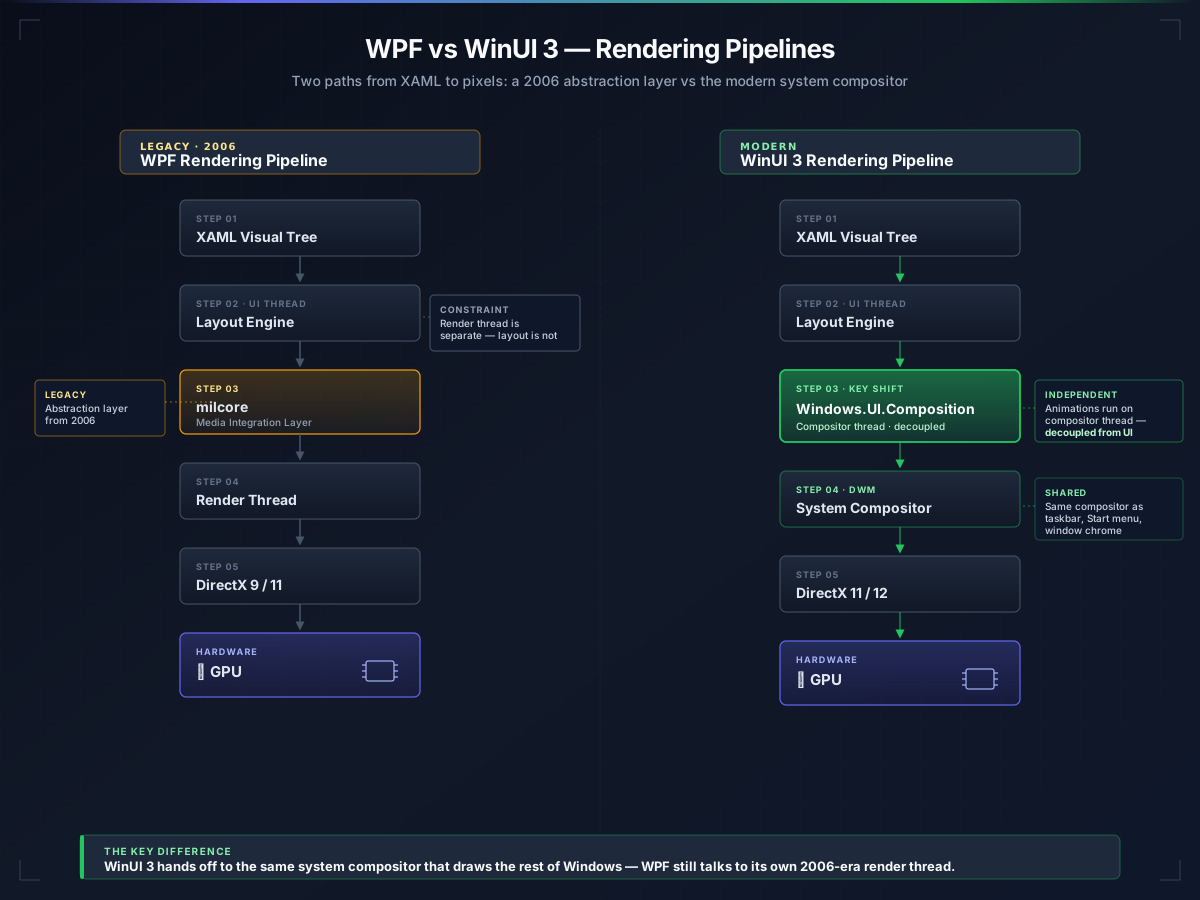
WPF uses a retained-mode rendering system built on milcore (the media integration layer), which talks to DirectX. The visual tree is managed in a separate render thread, providing some natural parallelism. This architecture was revolutionary in 2006 and remains capable, but it carries legacy constraints:
- DirectX 9 origins (upgraded to 11 in later .NET versions, but the abstraction layer remains)
- The render thread is separate but tightly coupled to the UI thread for layout
- Custom rendering via
DrawingContextis powerful but verbose - GPU utilisation is somewhat conservative – milcore doesn’t take full advantage of modern GPU features
WinUI 3’s Rendering Pipeline
WinUI 3 renders through the Windows.UI.Composition layer – the same compositor used by the Windows shell itself. This is a fundamentally different model:
- System-level composition – your app’s content is composited by the same engine rendering the taskbar, Start menu, and window chrome. This means consistent animations, smooth resizing, and native transparency effects (Mica, Acrylic) without hacks
- Independent animations – composition animations run on the compositor thread, completely decoupled from your UI thread. A busy UI thread doesn’t stutter your animations
- DirectX 11/12 – native, modern GPU utilisation without a legacy abstraction layer
The practical difference? WinUI 3 apps feel smoother during heavy UI operations. Scroll a complex list while data is loading, and you’ll notice the difference. WPF can achieve similar smoothness, but you have to work harder for it – virtualisation, async loading patterns, careful dispatcher management.
Threading Models
Both frameworks use a single-UI-thread model for XAML operations. The difference is in what happens off the UI thread.
WPF gives you Dispatcher.Invoke/BeginInvoke for marshalling work back to the UI thread. The render thread handles visual composition but layout remains UI-thread-bound. For heavy computational work, you’re managing Task.Run and callbacks yourself.
WinUI 3 has DispatcherQueue instead of Dispatcher – a more modern API, but functionally similar for most code. The real win is that composition animations and visual effects don’t need the UI thread at all, so there’s less pressure on your marshalling discipline.
// WPF - Dispatcher pattern
Application.Current.Dispatcher.Invoke(() =>
{
    StatusText.Text = "Processing complete";
});

// WinUI 3 - DispatcherQueue pattern
DispatcherQueue.TryEnqueue(() =>
{
    StatusText.Text = "Processing complete";
});
The API difference is minor. The architectural difference underneath is significant.
Performance Head-to-Head
Let me be upfront: benchmarking UI frameworks is messy. Results depend heavily on the application’s complexity, the hardware, and what you’re measuring. These numbers are from my own testing with a moderately complex line-of-business application (data grids, forms, navigation, charting) running on a mid-range development machine (Ryzen 7, 32GB RAM, integrated graphics).
Startup Time
| Scenario | WPF (.NET 9) | WinUI 3 (WinAppSDK 1.8) |
|---|---|---|
| Cold start (first launch) | ~1.8s | ~1.4s |
| Warm start (subsequent) | ~0.9s | ~0.7s |
| With Native AOT (preview) | ~0.7s | ~0.5s |
WinUI 3 starts faster. The gap is consistent but not dramatic for most applications. Where it gets interesting is Native AOT – both frameworks benefit, but WinUI 3’s compatibility with AOT is further along. WPF’s reliance on reflection-heavy patterns (particularly in data binding, XAML parsing, and some DependencyProperty patterns) makes AOT trickier, though .NET 10 is improving this.
Memory Usage
WinUI 3 consistently uses less memory for comparable applications. In my LOB test app:
| Metric | WPF | WinUI 3 |
|---|---|---|
| Working set (idle) | ~185 MB | ~155 MB |
| Working set (active, 10k rows loaded) | ~340 MB | ~285 MB |
| Private bytes (steady state) | ~210 MB | ~175 MB |
That’s roughly 15-20% lower across the board, consistent with what I reported in 2024. The gap hasn’t widened, but it hasn’t closed either. WinUI 3’s more efficient visual tree and native composition layer simply use less managed memory.
Rendering Throughput
For smooth scrolling through large data grids and complex layouts:
| Scenario | WPF (fps) | WinUI 3 (fps) |
|---|---|---|
| Scrolling 10k row DataGrid | 45-55 | 58-60 |
| Complex layout resize | 30-45 | 55-60 |
| Animation-heavy dashboard | 50-58 | 58-60 |
WinUI 3’s compositor-backed rendering keeps it pegged near 60fps in scenarios where WPF drops frames. This is most noticeable during window resizing and when multiple animations play simultaneously.
The AOT Story
Native AOT compilation is where the next performance leap lives for desktop apps. As of early 2026:
- WinUI 3: AOT support is in preview via Windows App SDK. Simple to moderate applications compile successfully. Complex reflection scenarios still require fallbacks
- WPF: AOT compatibility is more limited due to deeper reliance on runtime code generation (XAML parsing, style resolution). .NET 10 previews are closing this gap, but it’s not production-ready yet
If ahead-of-time compilation is a priority for your deployment scenario (cold start time, distribution size), WinUI 3 has a meaningful head start.
Developer Experience
Benchmarks are one thing. What’s it actually like to sit down and build something? This is where the comparison gets more nuanced.
Visual Studio Tooling
WPF has had two decades to settle into Visual Studio. The XAML designer works. Properties panels are thorough. The debugging experience – Live Visual Tree, Live Property Explorer, XAML binding failures in the Output window – is mature and reliable. It just works, and your muscle memory carries you.
WinUI 3’s Visual Studio integration has improved dramatically since 2024. The XAML designer is now stable (I’m comfortable saying that without caveats for the first time). XAML Hot Reload works consistently for most scenarios, including style changes and control tree modifications. Template debugging and binding diagnostics have caught up.
Where WPF still has an edge:
- Blend for Visual Studio – still works for WPF, not available for WinUI 3
- XAML designer reliability – WPF’s is rock-solid; WinUI 3’s is good but occasionally needs a restart for complex custom controls
- Design-time data –
d:DesignInstanceand design-time data contexts are more established in WPF
Where WinUI 3 has pulled ahead:
- Project templates – the Windows App SDK templates are cleaner, more opinionated, and set up better defaults (MVVM structure, dependency injection scaffolding)
- XAML Hot Reload – paradoxically, WinUI 3’s Hot Reload now feels more responsive than WPF’s for style and template changes
- Community Toolkit integration – the Windows Community Toolkit is a first-class citizen, with source generators for MVVM that eliminate boilerplate
Debugging
Both frameworks support Live Visual Tree inspection and property editing. WPF’s XAML binding failure diagnostics are slightly more detailed, but WinUI 3’s have improved enough that you won’t feel lost. The x:Bind compiled bindings in WinUI 3 actually reduce debugging time – binding errors become compile-time errors rather than silent runtime failures.
<!-- WPF - runtime binding (fails silently if wrong) -->
<TextBlock Text="{Binding UserName}" />

<!-- WinUI 3 - compiled binding (fails at compile time if wrong) -->
<TextBlock Text="{x:Bind ViewModel.UserName, Mode=OneWay}" />
This is genuinely one of WinUI 3’s best quality-of-life improvements. If you’ve ever spent an hour tracking down a silent binding failure in WPF, you’ll appreciate x:Bind immediately.
Community and Learning Resources
WPF has a vast library of tutorials, Stack Overflow answers, books, and blog posts accumulated over 20 years. If you hit a problem, someone has hit it before and written about it.
WinUI 3’s community is smaller but growing. Microsoft’s documentation has improved considerably (the gaps I flagged in 2024 are largely filled), and the GitHub repository is active. But for niche scenarios, you’ll still occasionally find yourself reading UWP documentation and mentally translating – the APIs are close enough that UWP guidance often applies, but not always.
Ecosystem and Third-Party Controls
For enterprise LOB applications, the third-party control ecosystem can be a make-or-break factor.
The Big Three
| Vendor | WPF Support | WinUI 3 Support |
|---|---|---|
| Telerik | ✅ Full suite, mature | ✅ Full suite (shipped late 2024) |
| DevExpress | ✅ Full suite, mature | ✅ Core controls available, expanding |
| Syncfusion | ✅ Full suite, mature | ✅ Major controls available |
The headline change since 2024: all three major control vendors now ship production-ready WinUI 3 suites. Telerik’s offering is particularly complete. The gap hasn’t fully closed – WPF still has more niche controls available (specialised scheduling grids, industrial gauges, etc.) – but for the typical LOB application, you’re no longer blocked.
Open-Source Ecosystem
The Windows Community Toolkit continues to be excellent and is WinUI 3-first. It provides controls, helpers, and MVVM source generators that fill gaps the framework leaves.
CommunityToolkit.Mvvm deserves a special mention – it works with both WPF and WinUI 3, providing ObservableObject, RelayCommand, and source generators that eliminate MVVM boilerplate in either framework:
// Works in both WPF and WinUI 3
[ObservableProperty]
private string _userName;

[RelayCommand]
private async Task SaveAsync()
{
    await _repository.SaveUserAsync(UserName);
}
For charting, LiveCharts2 supports both frameworks. OxyPlot is WPF-only but alternatives exist for WinUI 3. WinUIEx provides essential utilities (window management, OAuth helpers) that fill WinUI 3 framework gaps.
NuGet Package Compatibility
This is a subtle but important point. Many .NET libraries that target WPF-specific APIs (System.Windows.* namespaces) don’t work directly in WinUI 3. If your project depends on WPF-specific NuGet packages (PDF rendering libraries, custom control packs, reporting tools), verify WinUI 3 compatibility before committing.
The reverse isn’t true – most WinUI 3 NuGet packages have no dependency on WPF. But fewer libraries target WinUI 3 specifically, so the overall package count is lower.
XAML Differences That Actually Matter
Both frameworks use XAML, and about 80% of your XAML knowledge transfers directly. It’s the other 20% that trips you up during a migration or when switching between projects.
Namespace Changes
<!-- WPF -->
<Window xmlns="http://schemas.microsoft.com/winfx/2006/xaml/presentation"
        xmlns:x="http://schemas.microsoft.com/winfx/2006/xaml">

<!-- WinUI 3 -->
<Window xmlns="http://schemas.microsoft.com/winfx/2006/xaml/presentation"
        xmlns:x="http://schemas.microsoft.com/winfx/2006/xaml">
Wait – those are the same? Yes, the default XAML namespace is identical. The differences are in the code-behind namespaces:
// WPF
using System.Windows;
using System.Windows.Controls;
using System.Windows.Media;

// WinUI 3
using Microsoft.UI.Xaml;
using Microsoft.UI.Xaml.Controls;
using Microsoft.UI.Composition;
This is where most migration pain lives. Every using statement changes, and with it, every type reference.
Data Binding
WPF uses {Binding} with runtime reflection. WinUI 3 supports both {Binding} and {x:Bind}:
<!-- WPF - runtime binding -->
<TextBlock Text="{Binding Path=Name, StringFormat='Hello, {0}'}" />

<!-- WinUI 3 - compiled binding (preferred) -->
<TextBlock Text="{x:Bind ViewModel.Name, Mode=OneWay}" />

<!-- WinUI 3 - runtime binding (also supported) -->
<TextBlock Text="{Binding Path=Name}" />
x:Bind is compile-time verified, faster at runtime, and catches errors earlier. It doesn’t support everything {Binding} does (notably StringFormat is missing – use a converter or function binding instead), but it should be your default choice in WinUI 3.
Controls That Don’t Map 1
| WPF Control | WinUI 3 Equivalent | Notes |
|---|---|---|
DataGrid | DataGrid (Community Toolkit) | Not built-in; use CommunityToolkit or third-party |
RichTextBox | RichEditBox | Different API surface |
StatusBar | No direct equivalent | Build with Grid/StackPanel |
Menu / ContextMenu | MenuBar / MenuFlyout | Similar but renamed, different attachment model |
Expander | Expander | ✅ Available natively since WinAppSDK 1.1 |
TreeView | TreeView | ✅ Available, slightly different API |
TabControl | TabView | Much richer API with tear-off tab support |
WinUI-Only Features
These have no direct WPF equivalent (note: WPF’s .NET 9 Fluent theme brings visual parity for standard controls, but the underlying APIs and compositor-level features below remain WinUI-exclusive):
- Mica / Acrylic materials – system backdrop effects rendered by the Windows compositor. WPF’s Fluent theme applies Fluent styling to controls, but it doesn’t use the
Windows.UI.Compositionbackdrop APIs, so you don’t get the through-window transparency and depth effects that Mica provides - NavigationView – a full-featured navigation control with hamburger menu, breadcrumbs, and back navigation built in
- InfoBar – inline notification banners with severity levels
- BreadcrumbBar – hierarchical navigation display
- NumberBox – numeric input with validation, increment/decrement, and formatting built in
- TeachingTip – contextual tutorial callouts
- AnimatedIcon – Lottie-powered animated icons that respond to state changes
These controls are genuinely well-designed and would take significant effort to replicate in WPF using third-party libraries or custom implementations.
Deployment and Distribution
How you get your app onto users’ machines matters, and the two frameworks take fundamentally different default approaches. This section goes deep because deployment is where many teams hit unexpected friction.
WPF Deployment
WPF gives you maximum flexibility – it supports every deployment model Windows has ever offered:
- Traditional MSI/EXE installers (WiX, Inno Setup, NSIS) – full control over install location, registry entries, shortcuts, and upgrade behaviour. WiX v5 (the latest major version) works well with .NET 9 WPF projects and integrates into MSBuild pipelines
- ClickOnce – still supported for .NET 9 and works well for intranet scenarios where you want automatic update checking without writing your own update logic. The deployment manifest is generated at build time and served from a web server or file share
- MSIX – optional but fully supported. If you want Store distribution or clean install/uninstall semantics, you can package a WPF app as MSIX using the Windows Application Packaging Project in Visual Studio
- Self-contained deployment – bundle the .NET runtime with your app. No machine-wide prerequisites required. The
dotnet publish -r win-x64 --self-containedworkflow produces a standalone folder - xcopy / zip deployment – for internal tools, sometimes you just want to copy files to a share. Framework-dependent WPF apps can be this simple
The key point: WPF doesn’t impose an opinion on how you deploy. Your existing CI/CD pipelines, GPO deployments, and SCCM distributions all work without modification.
WinUI 3 Deployment
WinUI 3 defaults to MSIX packaging, but unpackaged deployment is fully supported since Windows App SDK 1.1. Understanding the trade-offs between packaged and unpackaged is important because they affect which APIs are available to your app at runtime.
- MSIX (packaged) – the default and best-supported path. Your app gets a package identity, which unlocks identity-dependent APIs: toast notifications with actions, background tasks registered via
BackgroundTaskBuilder, share target declarations, and protocol activation. MSIX also gives you clean install/uninstall (no leftover files or registry entries), automatic differential updates, and Store distribution eligibility - Unpackaged – traditional deployment without MSIX. The Windows App SDK’s bootstrap API (
WindowsAppRuntime.Bootstrap.Initialize()) loads the runtime dynamically. This works, but you lose package identity and the APIs that depend on it. For apps that don’t need notifications or background tasks, this may be fine - Self-contained – bundle the Windows App SDK runtime (and optionally the .NET runtime) alongside your app using
<WindowsAppSDKSelfContained>true</WindowsAppSDKSelfContained>in your project file. This eliminates the framework installer dependency but increases your distribution size - External location packaged – a hybrid: MSIX identity with files deployed outside the MSIX package. Set
<AppxPackageSigningEnabled>true</AppxPackageSigningEnabled>with an external location manifest. You get package identity APIs while keeping your existing installer and file layout. This is increasingly the recommended path for enterprise apps that need both identity and traditional deployment
Microsoft Store and Partner Centre
If you’re distributing through the Microsoft Store, WinUI 3’s MSIX-first design is clearly the smoother path. The Store submission flow via Partner Centre expects MSIX packages, and WinUI 3’s build tooling generates these naturally.
I’ll share a personal observation here: when I first published a WinUI 3 app to the Store back in the SDK 1.4/1.5 era, the packaging workflow was surprisingly manual. I was zipping up specific files, manually building the .msixupload bundle, and then uploading it through the Partner Centre web portal. It felt like something was missing from the tooling. Fast-forward to today, and that entire process is handled end-to-end by Visual Studio – right-click, Publish, select Store, authenticate, and the tooling handles MSIX bundle creation, signing, and upload to Partner Centre in one pipeline. Whether that improvement came from the Windows App SDK team or the Visual Studio 2026 tooling team (probably both), the result is a Store publishing experience that’s actually pleasant now.
WPF can also publish to the Store via MSIX, but you’ll need the Windows Application Packaging Project wrapper, and the workflow feels more bolted-on than integrated.
Distribution Size
| Configuration | WPF | WinUI 3 |
|---|---|---|
| Framework-dependent | ~5 MB | ~15 MB |
| Self-contained | ~80 MB | ~90 MB |
| Self-contained + trimmed | ~40 MB | ~50 MB |
| Native AOT (preview) | ~25 MB | ~30 MB |
WinUI 3 apps are slightly larger due to the Windows App SDK runtime. The difference is marginal for most scenarios, but if you’re distributing to thousands of machines over limited bandwidth, it’s worth factoring in.
Migration: WPF to WinUI 3
If you have an existing WPF application and you’re considering migration, let’s talk honestly about what’s involved.
The Full Migration Path
A complete WPF-to-WinUI migration involves:
- Namespace changes – every
System.Windows.*reference becomesMicrosoft.UI.Xaml.*. In a large codebase, this touches hundreds or thousands of files - API replacements – not everything has a 1 equivalent.
DispatcherbecomesDispatcherQueue,DrawingContextpatterns change, some WPF-specific APIs don’t exist - Third-party control swaps – verify every NuGet package and control library has a WinUI 3 version. Budget time for control-level API differences even when the vendor supports both
- Testing – visual regression testing is critical. XAML that looks identical may render slightly differently due to the different rendering pipelines
- Deployment changes – if moving to MSIX, your build and distribution pipelines need updating
The .NET Upgrade Assistant
Microsoft’s .NET Upgrade Assistant tool can automate some of this – namespace replacements, project file conversion, and basic API mappings. It’s improved significantly since its early days and handles straightforward migrations well. But it’s a starting point, not a finish line. Complex custom controls, deep Win32 interop, and third-party control dependencies still require manual work.
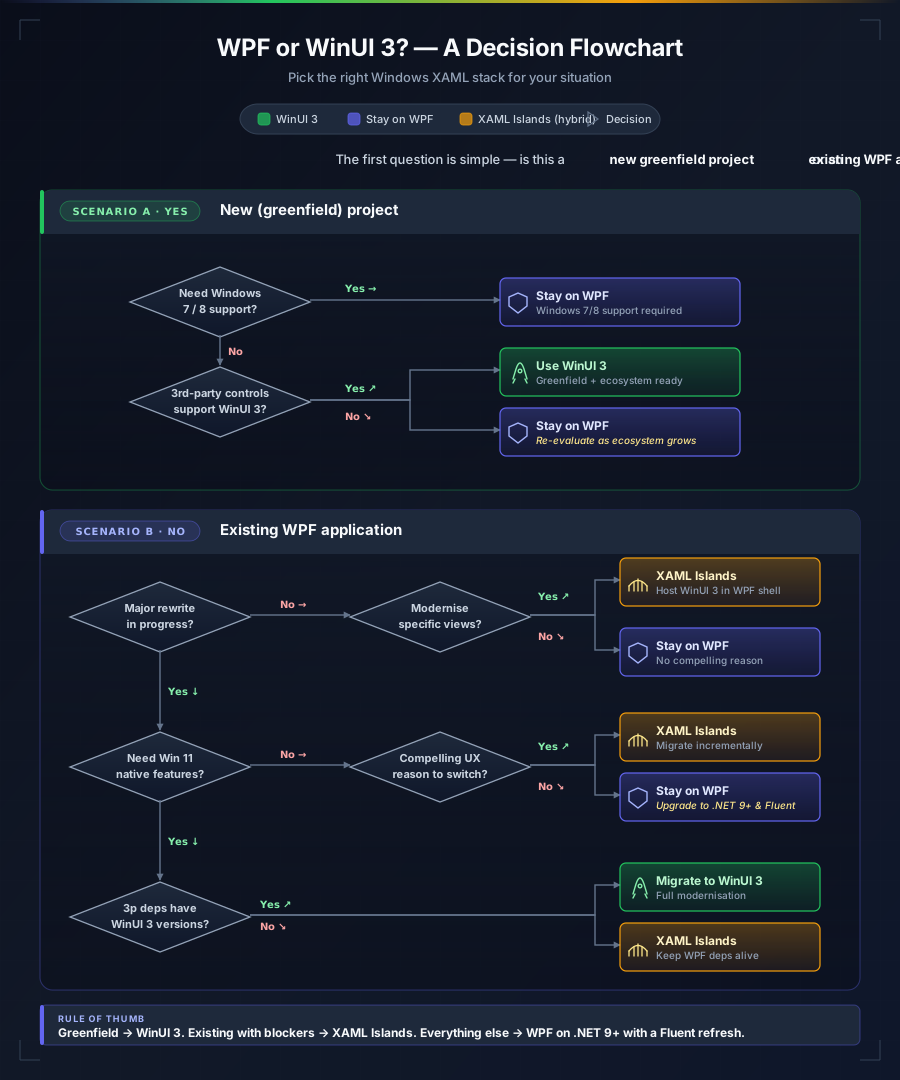
The Incremental Path: XAML Islands
Here’s the option many teams overlook: you don’t have to migrate all at once. XAML Islands let you host WinUI 3 content inside a WPF application. This means you can:
- Build new features in WinUI 3 while keeping existing WPF code running
- Gradually migrate individual views or controls
- Ship Fluent UI elements (NavigationView, InfoBar, Mica backdrop) inside your existing WPF shell
- Validate WinUI 3’s suitability with real users before committing to a full migration
Since Windows App SDK 1.6, XAML Islands are production-stable. I’ve seen this approach work well for teams with large WPF applications that want to modernise incrementally without a risky Big Bang rewrite.
When Migration Makes Sense
Migrate when:
- You’re already doing a major version rewrite
- Your application needs deep Windows 11 integration (Mica, snap layouts, modern notifications)
- You want to distribute through the Microsoft Store
- Your third-party control dependencies all have WinUI 3 equivalents
- You have the testing infrastructure to catch visual regressions
Stay on WPF when:
- The application works and users aren’t requesting a visual refresh
- You depend on WPF-specific third-party controls with no WinUI 3 equivalent
- Your deployment pipeline is built around traditional installers and changing it has high cost
- The team’s bandwidth is better spent on features than framework migration
When to Choose What
Right, the decision framework. I’ll avoid the wishy-washy “it depends” (even though it does) and give you concrete scenarios.
Choose WinUI 3 When
- New project, Windows 10 1809+ – for greenfield work targeting modern Windows, WinUI 3 is the stronger foundation going forward
- Windows 11 native experience matters – Mica, rounded corners, Fluent design, snap layouts. These aren’t bolt-ons in WinUI 3; they’re native
- Performance-sensitive UIs – if you’re building dashboards, data visualisation tools, or anything with heavy animation, the compositor-backed rendering pays dividends
- Store distribution – MSIX packaging and Store publishing are first-class citizens
- Long-term investment – WinUI 3 is where Microsoft’s active UI development investment is going. If this project will be maintained for 5+ years, you want to be on the framework that’s still gaining features
Choose WPF When
- Broad Windows version support – if you need Windows 7/8/8.1 support, WPF is your only option
- Third-party control dependency – if your app requires specialised controls only available for WPF
- Existing WPF codebase – if you have a working WPF application and no compelling reason to migrate, stay put. There’s no urgency
- Team expertise – if your team knows WPF deeply and doesn’t have bandwidth to learn WinUI 3’s differences, the productivity cost of switching matters
- Complex printing/reporting – WPF’s
FlowDocument,FixedDocument, andXPSsupport is mature. WinUI 3’s printing story is functional but less feature-rich - Blend design workflows – if your team uses Blend for Visual Studio extensively
The Summary Table
| Consideration | WinUI 3 | WPF |
|---|---|---|
| Modern Fluent UI | ✅ Native, first-class | ⚠️ Fluent theme available (.NET 9+), but not as deep as WinUI |
| Windows 11 integration | ✅ Deep, native | ⚠️ Limited |
| Windows 7/8 support | ❌ Not supported | ✅ Supported |
| Performance (rendering) | ✅ Compositor-backed | ⚠️ Good, but works harder |
| Startup time | ✅ Faster | ⚠️ Slightly slower |
| Memory footprint | ✅ ~15-20% lower | ⚠️ Higher |
| Native AOT readiness | ✅ Preview, progressing | ⚠️ Limited, .NET 10 improving |
| Third-party ecosystem | ✅ Major vendors present | ✅ Broadest ecosystem |
| Niche/specialised controls | ⚠️ Gaps remain | ✅ Broad coverage |
| Visual Studio tooling | ✅ Good, improving | ✅ Mature, stable |
| XAML designer | ⚠️ Good, occasional quirks | ✅ Rock-solid |
| Community resources | ⚠️ Growing | ✅ Vast, 20 years deep |
| Compiled bindings (x) | ✅ First-class | ❌ Not available |
| Deployment flexibility | ⚠️ MSIX-first (unpackaged available) | ✅ Any method |
| Printing/reporting | ⚠️ Functional | ✅ Mature |
| .NET 9 support | ✅ Yes | ✅ Yes |
| .NET 10 support | ✅ Preview available | ✅ Preview available |
| Microsoft’s active investment | ✅ Primary desktop UI focus | ⚠️ Maintenance + targeted improvements |
Conclusion
Two years on from my original WinUI 3 write-up, the story has shifted. In 2024, I’d have said WinUI 3 was promising but not yet the default recommendation. In 2026, for new Windows desktop projects targeting Windows 10 or later, WinUI 3 is the stronger starting point.
That’s not a dismissal of WPF. WPF remains an excellent framework – stable, well-documented, with the deepest third-party ecosystem in Windows desktop development. If you have a working WPF application, there is no urgent reason to migrate. If you’re starting fresh and need older Windows support, WPF is still the right call.
But for new projects on modern Windows? WinUI 3’s performance characteristics, native Windows 11 integration, compiled bindings, and the trajectory of Microsoft’s investment make it the framework to build on. The rough edges I flagged in 2024 – tooling instability, ecosystem gaps, documentation holes – have been meaningfully addressed. Not perfectly, but enough that the balance has tipped.
The decision is practical: what Windows versions do you target, what controls do you need, and where is your team’s expertise? Answer those three questions and the choice usually makes itself.
References and Further Reading
These are the primary sources I used and recommend for going deeper on specific topics covered in this post.
Official Microsoft Documentation
- Windows App SDK release channels – Version lifecycle, current stable (1.8) and preview (2.0) release details: learn.microsoft.com/windows/apps/windows-app-sdk/stable-channel
- What’s new in WPF for .NET 9 – Fluent theme, ThemeMode API, accent colour support, BinaryFormatter removal: learn.microsoft.com/dotnet/desktop/wpf/whats-new/net90
- Windows App SDK deployment overview – Packaged vs unpackaged deployment models, self-contained options, external location packaging: learn.microsoft.com/windows/apps/windows-app-sdk/deploy-overview
- Create app submission for MSIX apps – Partner Centre Store submission process and requirements: learn.microsoft.com/windows/apps/publish/publish-your-app/msix/create-app-submission
- WPF migration guide for BinaryFormatter – Impact on clipboard and drag-and-drop in .NET 9+: learn.microsoft.com/dotnet/standard/serialization/binaryformatter-migration-guide/wpf-applications
- XAML Islands overview – Hosting WinUI 3 content in WPF and WinForms applications: learn.microsoft.com/windows/apps/desktop/modernize/xaml-islands
- .NET Upgrade Assistant – Tool for migrating WPF apps to WinUI 3: learn.microsoft.com/dotnet/core/porting/upgrade-assistant-overview
GitHub Repositories
- Windows App SDK – Issue tracker, feature requests, and release notes: github.com/microsoft/WindowsAppSDK
- WPF (.NET) – Open-source WPF runtime repository: github.com/dotnet/wpf
- Windows Community Toolkit – WinUI 3 controls, helpers, and CommunityToolkit.Mvvm: github.com/CommunityToolkit/Windows
- CommunityToolkit.Mvvm – MVVM source generators for WPF and WinUI 3: github.com/CommunityToolkit/dotnet
Community and Third-Party
- WinUIEx – Essential WinUI 3 utilities (window management, OAuth, tray icon): github.com/dotMorten/WinUIEx
- LiveCharts2 – Cross-framework charting library with WPF and WinUI 3 support: github.com/beto-rodriguez/LiveCharts2
- Telerik UI for WinUI – Commercial control suite: telerik.com/winui
Previous Coverage
- WinUI 3: A Practical Deep Dive – My January 2024 assessment that this post builds on: ctco.blog/posts/winui-3-a-practical-deep-dive

